



Photo gallery
More visuals from this story
Additional collector, city, and tournament visuals connected to this launch story.


1. Search the page Use the search bar and chips first so the Live Hub narrows around cities, matches, food, attractions, or trip planning. 2. Read the featured city The hero city c...
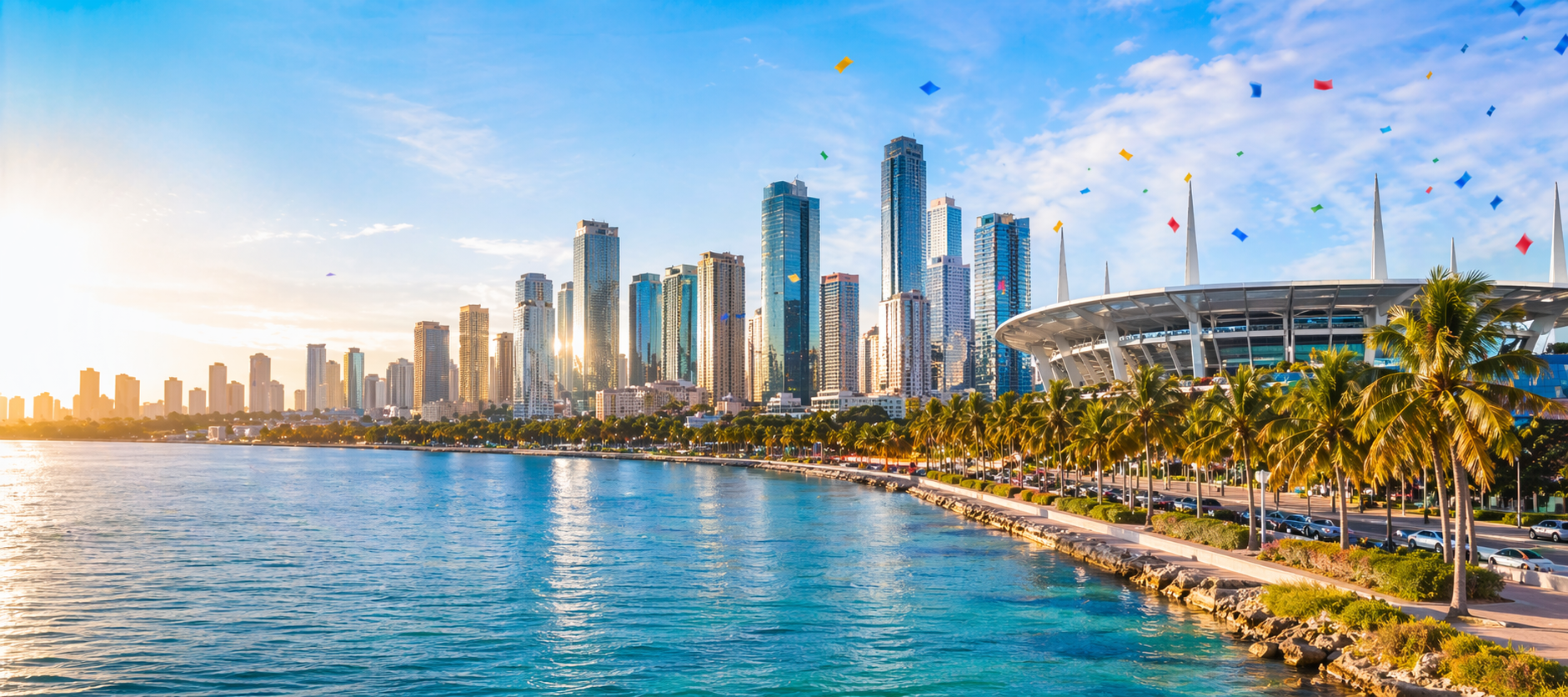
Additional collector, city, and tournament visuals connected to this launch story.
Use the search bar and chips first so the Live Hub narrows around cities, matches, food, attractions, or trip planning.
The hero city card is the fastest way to understand the next match, the stadium, and why that city matters today.
Move through Top Host Cities, activities, and food cards to build a more realistic matchday.
Use the match timeline and AI prompts so the page turns into a usable city plan instead of just inspiration.

The Live Hub is strongest when you move through it in order: search, featured city, top host cities, attractions, food, itinerary, then AI support.
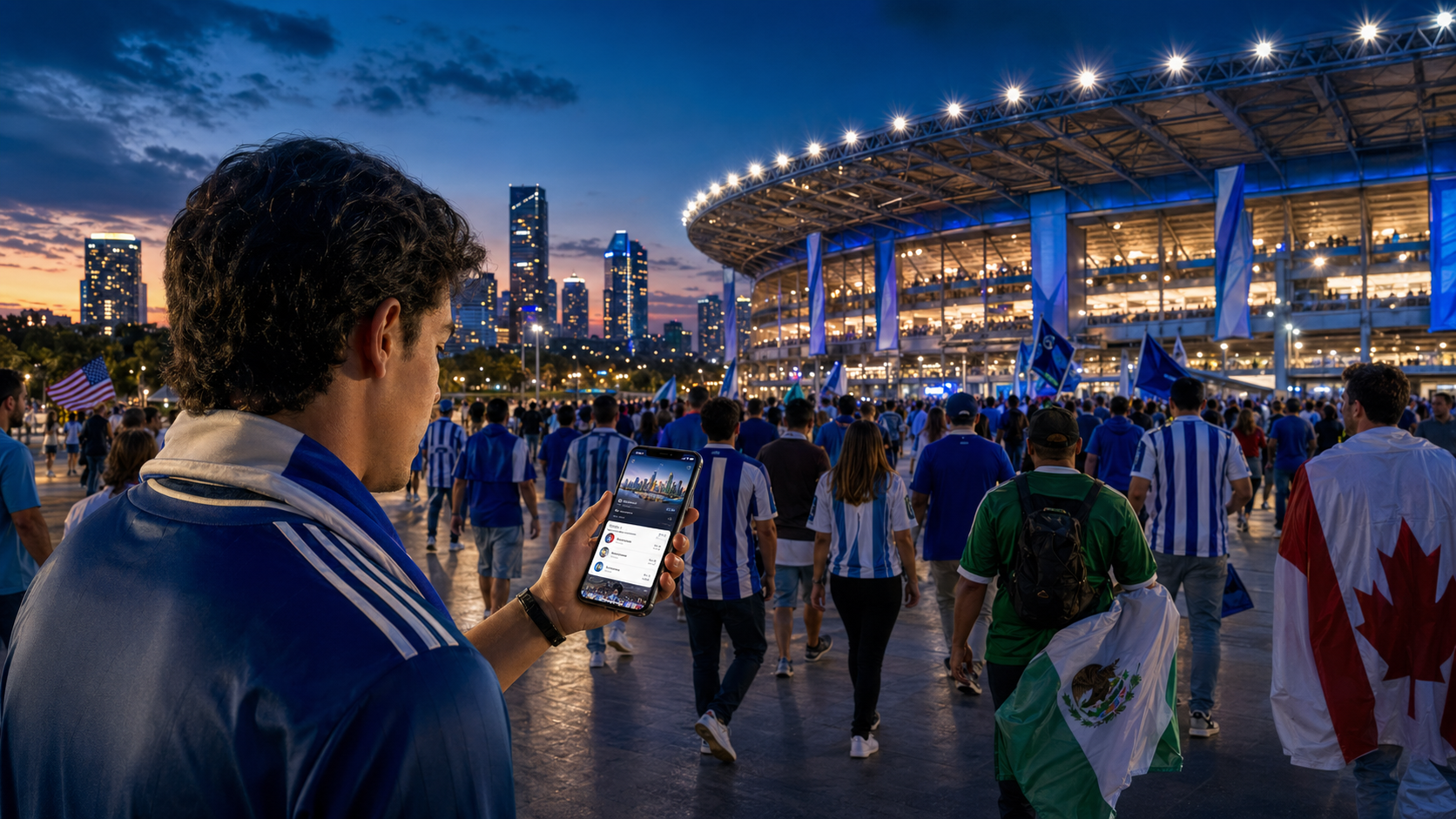
The first thing to understand about Live Hub is that it is not only a pretty landing page for host cities. It is a working matchday page. The hero block shows the badge, the host city count, the total scheduled matches, and the next featured fixture date, which means you can understand the current rhythm of the tournament in a few seconds before you start drilling into details. The image on the right is there to pull you into the atmosphere, but the copy and stats on the left are the practical part. They tell you whether the day is about broad city discovery or about one concrete upcoming match. If a visitor lands here without context, the hero is enough to answer three quick questions: how big is the host-city system, how active is the schedule, and which match moment is the page currently leaning toward. That orientation matters because good travel and event pages should not make users guess what deserves attention first.

The hero answers the main matchday question quickly: what city and fixture should I care about first?
Right after the hero, use the Live Hub search panel. The search field is valuable on its own, but the real speed comes from the chips underneath it. Cities resets you into the broad guide view. Matches pushes the page toward fixture and stadium language. Food highlights restaurants and places to eat. Attractions leans into things to do and neighborhood energy. My Trip points you toward itinerary and planning blocks. This matters because a matchday visitor is rarely browsing in a neutral mood. Sometimes the question is where to stay focused. Sometimes it is where to eat after the match. Sometimes it is which city deserves attention at all. The chip system respects those different intentions and filters the visible cards without forcing users into a new page. A good habit is to search first, tap a chip second, and only then move down the page. That makes the Live Hub feel deliberate instead of long because you are asking it the right question before you expect it to answer.
The featured city section is where the page becomes immediately useful. It combines city identity, region, stadium, next match, match date, time, stage, and supporting counts like attractions and restaurants in one compact block. In practical terms, this is the fastest answer to the question, “If I only have thirty seconds, what do I need to know about the city leading the page today?” The metrics are not random. Match count tells you event density. Attractions and restaurants tell you whether the city guide below is worth exploring for a fuller day instead of just a short match visit. The stadium pill and View City Guide button turn the card into a bridge, which is important because Live Hub is meant to start the thought and then hand you into deeper planning. If you feel overwhelmed by the rest of the page, begin here every time. Read the featured city, decide whether it matches your interest, and then continue with much better focus.

Featured city and Top Host City cards give the page its practical structure by tying matches to real city choices.
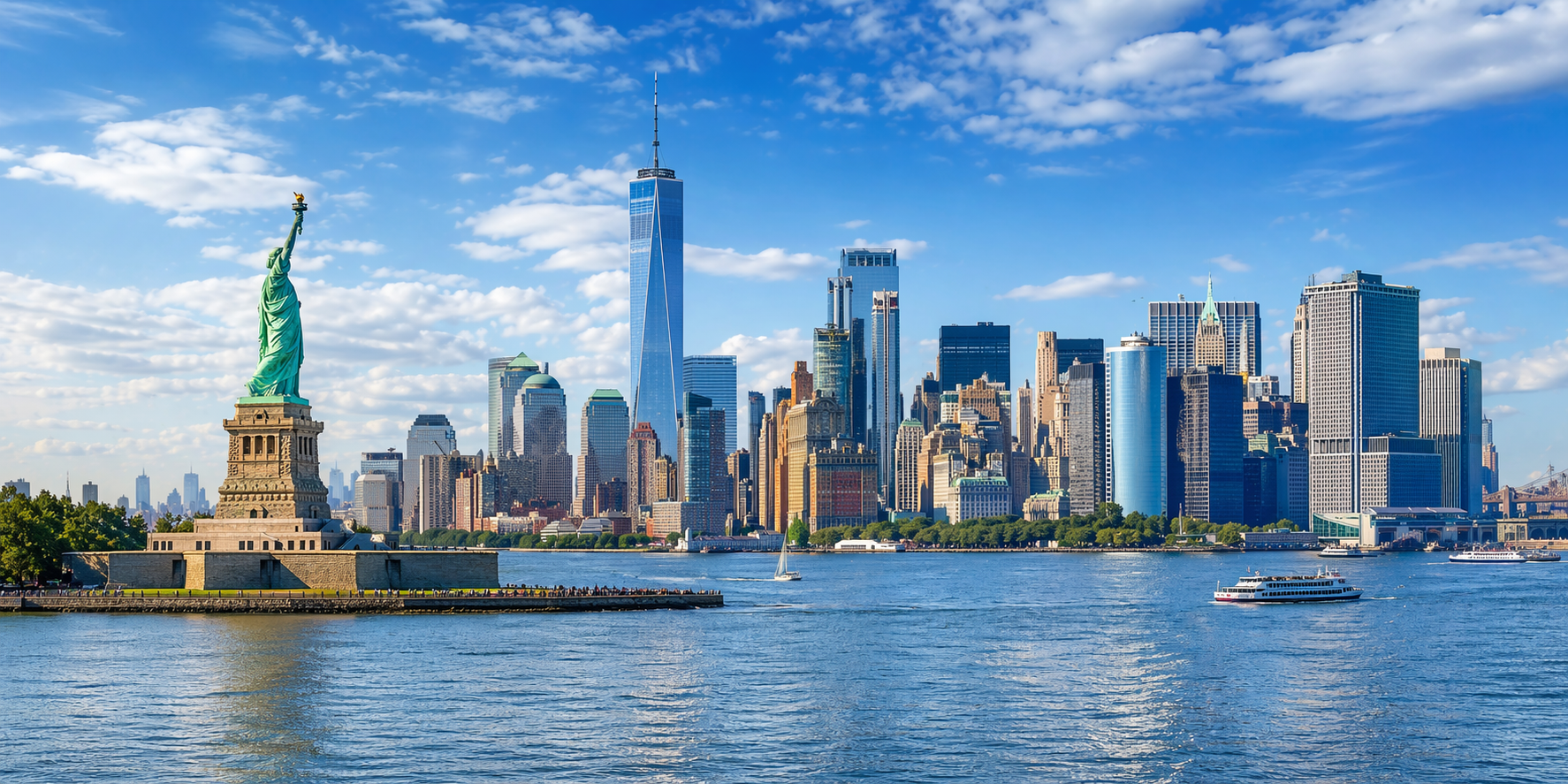
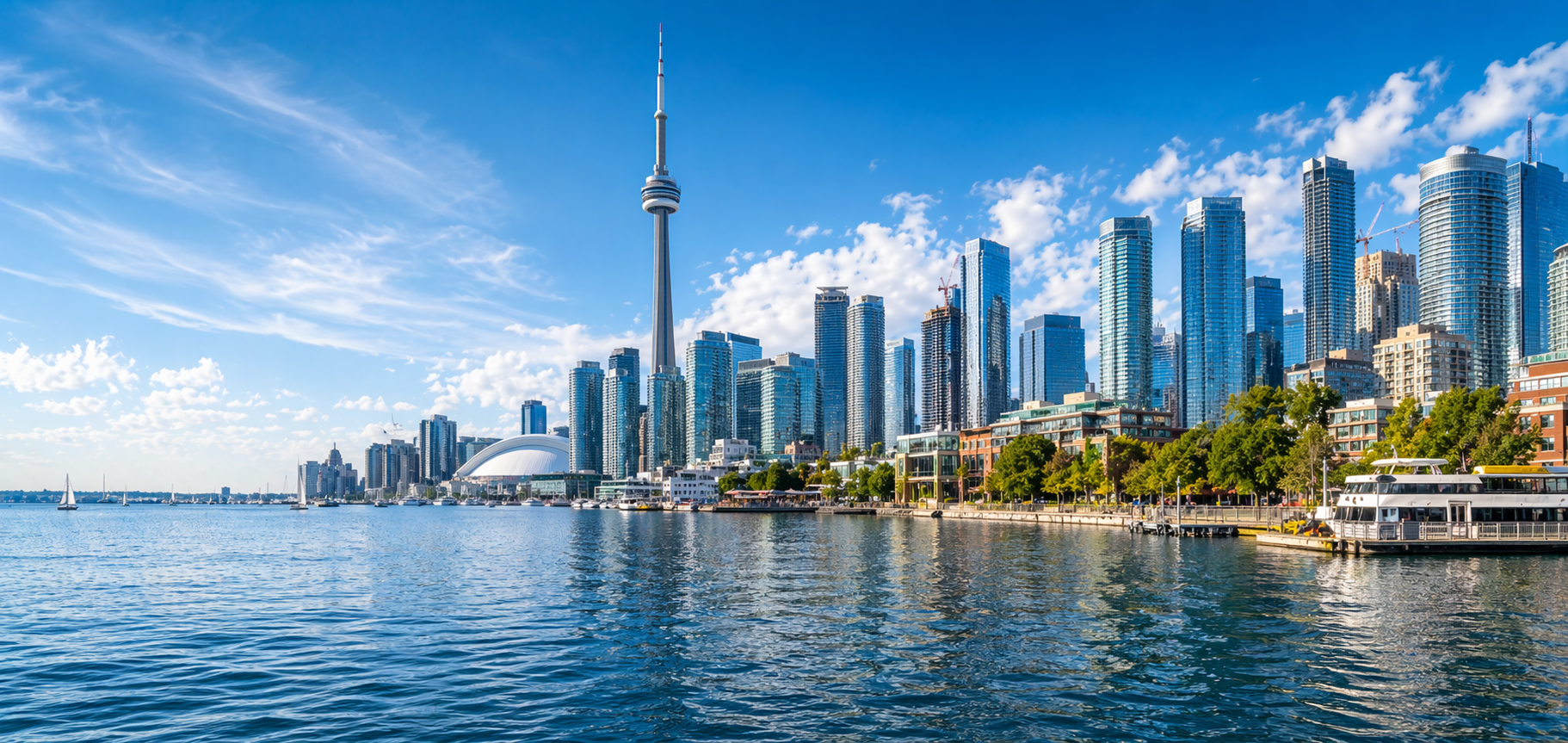
After the featured city, move into Top Host Cities. This section is where the Live Hub becomes a comparison tool instead of a single-story page. Each card gives you the region, match count, stadium, next match date, and a direct path into the city guide, which is exactly the level of information most visitors need when they are deciding where to spend more time. It is a fast way to compare cities like New York, Toronto, Los Angeles, Miami, or others without opening ten tabs and rebuilding the same context over and over. The smaller city links beneath the main grid matter too, because they keep the page from feeling closed around only the hero choice. If your travel interests, team schedule, or collector meetup plans change, those links let you jump outward quickly. This comparison layer is one of the reasons the page feels professional. It does not assume the first city shown should be the only city considered. It helps users compare, then commit with better confidence.
The next move is to stop thinking of Live Hub as only a sports page and start using it like a smart city companion. The Things To Do cards highlight attractions with category, distance, and short descriptions, while the Places To Eat cards do the same for food. That structure is more important than it sounds. Matchday travel is often rushed, and people do not need giant articles when they are deciding what to do before kickoff or where to go when the crowd starts to spill out of the stadium. They need a fast set of ideas that are close enough, relevant enough, and clearly presented enough to support a decision. That is what these two sections do. They let you build the emotional shape of the day, not only the technical schedule. A city becomes more memorable when you can connect the fixture to a walk, a landmark, or a good meal. The Live Hub supports that wider experience without making it feel like you left the match context behind.

Food and activity cards keep the page useful between arrival, kickoff, and post-match movement.
The best finishing move on the page is Match + City Itinerary. This section combines the featured fixture with a visual timeline so the page stops being informational and starts being operational. You can read the match teams, date, time, city, and stadium in one block, then move through the itinerary items beneath it like a small plan for the day. That is exactly what a visitor needs after comparing cities and reading atmosphere cards. They need a sequence. The AI prompt strip underneath completes that flow. Instead of asking the visitor to invent the right travel question from scratch, the page offers prebuilt prompt buttons that can launch the AI guide with a city-aware starting point. That is a strong design choice because it lowers the effort required to personalize the plan. Good planning tools do not only provide information. They reduce the friction of using that information well. This section does that better than most sports-travel pages do.
The reason this page matters so much is that it sits in the middle of several user journeys at once. It can start as city discovery, become a matchday planner, lead into Explore City Hub for deeper host-city guidance, and then hand off to World Cup Hub if you want broader tournament context. For collectors, that bridge is especially useful because matchday attention often drives sticker urgency, meetup timing, and in-person trade opportunities. A good routine is to open Live Hub when you know the city or the fixture is the center of the day. Search the page, filter with a chip, read the featured city, compare the top cards, build a rough itinerary, and only then decide whether you need the deeper city page or the wider tournament page. When used that way, Live Hub becomes much more than a beautiful section. It becomes the page that turns event energy into clear movement, which is exactly what a strong host-city experience should do.

Lorem, ipsum dolor sit amet consectetur adipisicing elit. Exercitationem, facere nesciunt doloremque nobis debitis sint?