





Photo gallery
More visuals from this story
Additional collector, city, and tournament visuals connected to this launch story.
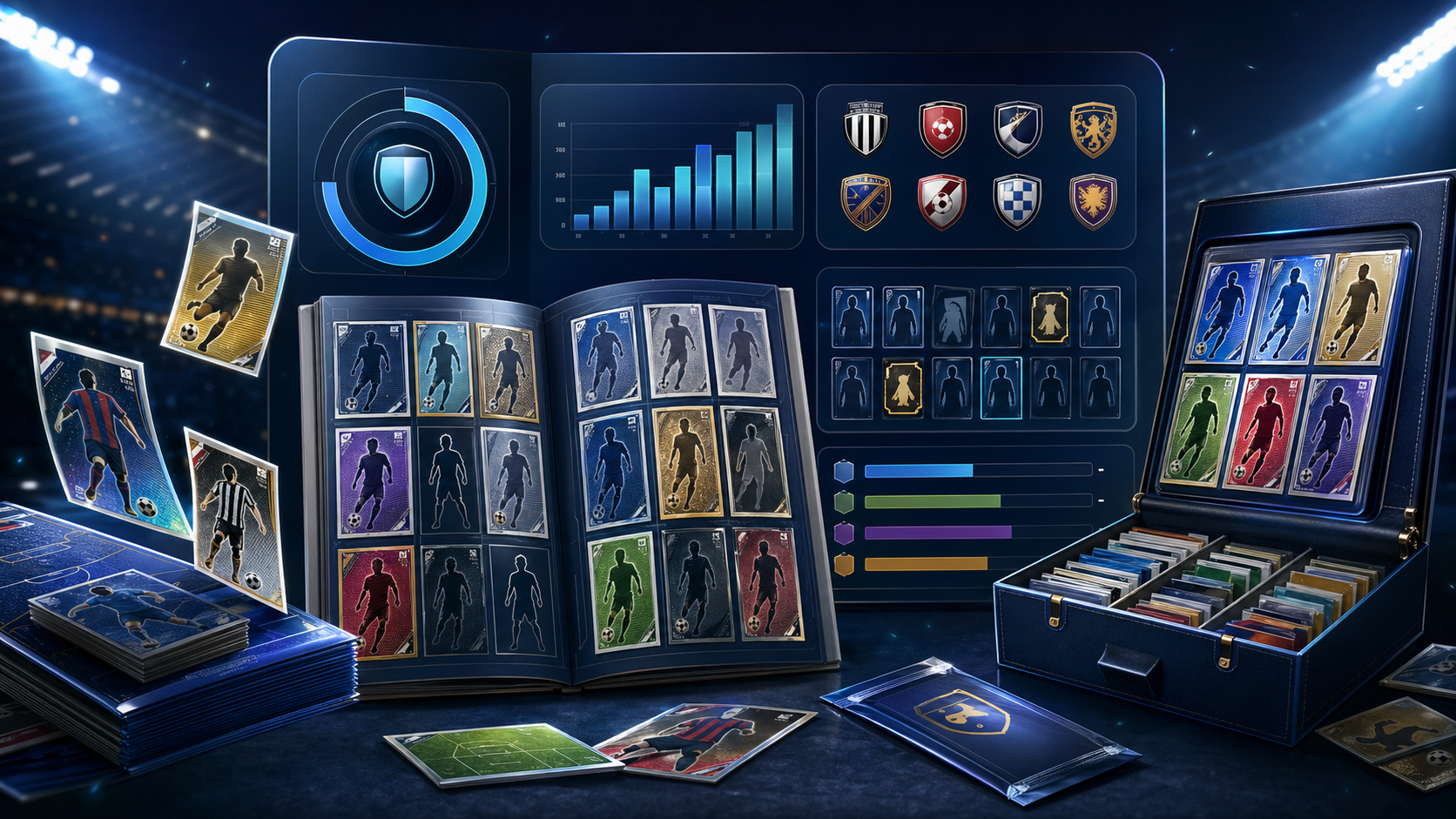



1. Register or sign in Create your account, request collector access, and keep your favorite team ready from the start. 2. Open Team Order Use one team as your focus so the hub imm...

Additional collector, city, and tournament visuals connected to this launch story.
Create your account, request collector access, and keep your favorite team ready from the start.
Use one team as your focus so the hub immediately tells you what to collect next.
Mark stickers as missing, collected, repeated, or wishlist, and save the right quantity.
Turn missing stickers into requests, duplicates into offers, and move the conversation into trade chat.

The personal Album Hub is the working area where progress, missing stickers, repeated stickers, trade actions, and collector chat all stay connected.
The easiest way to start is to register through the user registration page. During that process you will see a collector box that says Request access to Album Collector Hub. Turn that on, then fill in the city, country, preferred trade method, and favorite team fields carefully, because those fields are not decoration. They shape how the collector experience feels once you are approved. Your favorite team can become the first team the hub highlights, your city and country can appear in trade activity, and your preferred trade method helps frame the way other collectors understand how you want to exchange stickers. If you already have an account, you can still sign in through login and open the Album Hub access screen later, but registering with the collector request from the beginning is the cleanest route because it makes your first setup more intentional and saves you an extra step once the admin review is complete.
Once access is approved, open the personal hub from your Album Hub or explore the public entry point first from the public Album Hub page. The first area to understand is Team Order, because that section turns the platform from a simple tracker into a working checklist. If you saved a favorite team in your registration or access request, that team can shape what you see first, which is useful because most collectors do not want to stare at the entire album before they know where to begin. In Team Order you can switch teams, run Show Team Plan, review the team progress percentage, see how many stickers are still missing, spot a small focus strip of players, and look at the card labeled Next best sticker to find. That small feature matters more than it looks because it removes indecision. Instead of wondering what should come next, the page gives you a practical next move and keeps your collecting energy pointed in one useful direction.

This is the fastest mental model: register, request access, enter the hub, focus on one team, update album status, post requests or offers, then move into collector chat.
A lot of people make the same mistake the first time they open the hub: they treat Team Order like a read-only overview. It is much more useful than that. Think of Team Order as your focused planning screen. It shows the selected team, the team completion rate, how many stickers are collected, how many are still missing, and then the ordered list of stickers underneath. Each row tells you the sticker number, sticker label, section, team page, and current status. If the row is not yet complete, the interface gives you a direct Mark Collected button, which means you do not have to leave the working list every time you fill a slot. This section is especially powerful when you are working team by team instead of trying to update the entire album at once. Open one team, mark what you already have, watch the completion number move, and let the highlighted next sticker tell you what deserves your attention next. That rhythm keeps the page useful every day, even when you only have a few minutes to update progress.
After Team Order, move to My Album. This is where the collector grid becomes the truth source for your album. Every sticker card gives you the sticker number, sticker label, team label, a status badge, a status dropdown, a quantity field, and the Save Sticker button. The important part is to save the status honestly, because the rest of the workflow depends on that truth. Missing means you still need it. Collected means it is already in the album. Repeated means you own extra copies and want the platform to treat it as a potential offer. Wishlist is useful when you still want another copy or you want to keep a sticker on your radar without marking it as owned. Quantity matters too. If you own two or more copies, enter the real quantity instead of leaving everything at one, because the system uses that information to unlock stronger trade suggestions and to keep your repeated inventory realistic. In other words, the more accurate My Album is, the smarter the rest of the hub becomes.

The album control area works best when you update sticker status and quantity immediately after opening packs or finishing a trade.
Once your album data is accurate, the hub starts saving you time. Open Missing when you want to turn needed stickers into demand. Each card in that section already knows the sticker number and label, and you can either hit Post Request for the fast route or choose Customize if you want to open the composer with a drafted note. Then open Repeated for the opposite side of the workflow. Those cards represent your extra copies, and each one can become a live Post Offer in one click or a customized offer with prefilled sticker details and quantity. This is one of the best parts of the whole product because it removes retyping. You do not have to manually remember numbers, names, and quantities every time you want to trade. The hub already knows what is missing and what is repeated, so it converts your album state into action buttons. That is why updating status properly in My Album is so valuable: it feeds directly into the fastest trade creation flow on the site.
The right-side floating icon dock is the fast navigation layer for the logged-in collector experience, and it is worth learning on the first day because it saves a lot of unnecessary scrolling. Each icon is tied to a working area. Team Order takes you back to the focused checklist. My Album opens the central tracker grid. Missing jumps to your request-ready stickers. Repeated jumps to duplicates that can become offers. Trade Market takes you into the composer and community feed. Community Chat opens the full moderated chat room. Trade Inbox returns you to the trade-thread area inside the hub. Tournament jumps to cities, matches, and standings. The active icon highlights where you are, which makes it easier to stay oriented when you are moving quickly. A good habit is to use the dock as your primary movement tool: pick a team, update album status, jump to Missing or Repeated, then move straight into Trade Market or the inbox without starting over from the top of the page.

The dock is your collector shortcut bar: it keeps Team Order, My Album, Missing, Repeated, Trade Market, Community Chat, Trade Inbox, and Tournament one click away.
When you open Trade Market, the first thing to understand is that the platform is doing two jobs at once. It lets you create your own posts and it also shows you the live community feed. On the left, the composer asks for the exact fields that matter: trade type, sticker, quantity, and notes. Choose Offer a repeated sticker when you are posting from duplicates, or choose Request a missing sticker when you need help finding something that is still absent. The sticker selector is already grouped around your repeated and missing items, so you are not searching blind. On the right, the community feed shows live collector posts with sticker details, city, country, quantity, and message counts. When you find a good match, use Send Trade Message and keep the first message clear and practical. The system groups later replies by trade post, which is why this step matters. A clean first message creates a cleaner thread, and a cleaner thread makes it much easier to confirm what each person has, how many copies are available, and whether the exchange should happen locally or by shipping.
The trade composer, filters, and market feed work best after the hub already knows which stickers are missing and which ones are repeated.

Requests come from missing stickers, offers come from repeated stickers, and both flows should move into a clear trade message thread once you find a real match.
After you publish posts and send messages, the last habit is to use Trade Inbox and Community Chat intentionally. Trade Inbox is where message threads stay grouped by post, which is perfect for staying organized around actual sticker deals. You can reply directly there with Send Reply and keep the trade history easy to follow. Community Chat is broader. It is the right place when you want the moderated room, channels, image sharing, emoji reactions, and faster collector discovery beyond a single one-to-one trade. Then there is Tournament, which keeps host cities, upcoming matches, and group tables nearby while you work the album. That may sound like a separate feature, but it helps the collector rhythm: tournament attention affects what stickers become urgent, which teams rise in demand, and when collectors are most active. The best daily workflow is simple. Open Team Order, update My Album, jump to Missing or Repeated, publish or reply in Trade Market, clear your inbox, and finish with chat or tournament context if you want to stay close to the live moment. That routine makes the hub feel easy, because every section has one clear job and each job leads naturally into the next one.
Start with one team so the session has a clear goal instead of a random update pattern.
Use My Album to keep sticker status and quantity accurate before you trade anything.
Use Missing for requests and Repeated for offers so the market reflects your real needs.
Use Trade Inbox and Community Chat to confirm deals, then close finished posts to keep the market clean.

Lorem, ipsum dolor sit amet consectetur adipisicing elit. Exercitationem, facere nesciunt doloremque nobis debitis sint?